
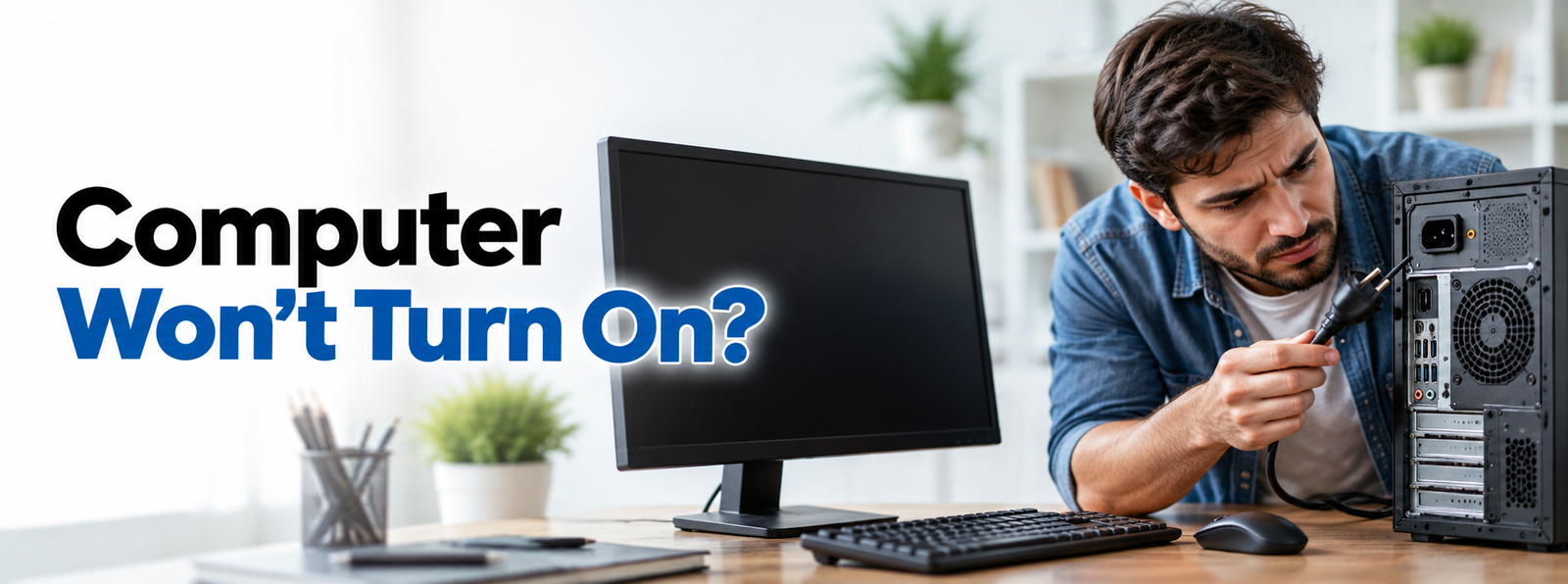
Pressing the power button and getting no response can be frustrating, especially when you need your computer for work, study, or everyday tasks. Sometimes, the computer may not show any signs of power. In other cases, the fans start spinning, but the screen stays black or the system shuts down shortly after starting.
A computer that won't turn on can have several possible causes. The problem might be related to the power supply, a loose cable, a drained laptop battery, a faulty display, or an internal hardware issue.
Check the Power Connection
One of the first things to check is whether your computer is receiving power. A loose cable, switched-off power outlet, or faulty extension board can prevent the system from starting.
- Make sure the power cable is firmly connected to the computer and the wall outlet.
- Check that the wall outlet is switched on, if it has a switch.
- Try another working outlet.
- If you use a power strip or extension board, check its switch and connections.
- Inspect the power cable for visible damage.
If you are using a desktop computer, check the power connection at the back of the computer as well. For a laptop, make sure the charger is connected properly at both ends. If possible, use a compatible charger that is known to work.
Safety Warning: Never use a damaged power cable or charger.
Check Whether the Battery Is Drained
A laptop may not turn on if its battery is completely drained. This can happen when the device has been left unused for a long time or when the battery is no longer holding a charge properly.
Connect the laptop to its compatible charger and allow it to charge for around 15–30 minutes before trying to start it again. Check whether the charging indicator lights up, if your model has one. If there is no charging indicator, try another compatible charger if available.
If the laptop still shows no signs of power, the issue may involve the charger, charging port, battery, or internal power circuitry.
Safety Note: Do not attempt to charge a battery that appears swollen, damaged, or unusually hot.
Disconnect External Devices
Connected accessories can sometimes interfere with startup. A USB device, external storage drive, docking station, or other peripheral may prevent the computer from starting normally.
- Turn off the computer if possible.
- Disconnect unnecessary USB devices and accessories.
- Remove external drives, memory cards, and docking stations.
- Keep only the essential power connection.
- Press the power button again.
If the computer starts normally, reconnect the devices one at a time to identify whether a particular accessory is causing the issue. Avoid disconnecting devices while data is being transferred or when doing so could cause data loss.
Perform a Power Reset
Sometimes, temporary electrical states can prevent a computer from responding to the power button. A power reset may help clear the issue.
- Turn off the power supply if it has an external switch.
- Unplug the power cable from the wall outlet.
- Disconnect unnecessary accessories.
- Press and hold the computer's power button for about 15 seconds.
- Reconnect the power cable and try turning the computer on.
- Disconnect the charger and remove connected accessories.
- If the battery is designed to be removable, remove it according to the manufacturer's instructions.
- Hold the power button for about 15 seconds.
- Reconnect the charger and try starting the laptop.
Do not force open the laptop or remove an internal battery that is not designed for user removal. Some models also have manufacturer-specific reset procedures, so consult the device manual if the steps above do not work.
Check Whether the Computer Is Actually Starting
Sometimes, a computer turns on but appears not to work because the display remains blank. This can make it seem as though the entire system has failed.
- Power indicator lights
- Fans spinning
- Startup sounds
- Keyboard lights
- Activity indicators on connected devices
If the computer appears to be running but nothing is displayed, the problem may be related to the monitor, display cable, screen brightness, or graphics hardware.
For a desktop, make sure the monitor is powered on and connected to the correct input. Check both ends of the display cable and try another compatible cable or monitor if one is available. For a laptop, adjust the screen brightness and disconnect any external display to test whether the built-in screen responds.
Check the Monitor and Display Cables
A desktop computer can appear completely unresponsive when the actual problem is a monitor that is switched off or disconnected.
- Make sure the monitor's power cable is connected.
- Confirm that the monitor is switched on.
- Select the correct input source, such as HDMI or DisplayPort.
- Check that the display cable is securely connected to the monitor and computer.
- Try a different compatible cable or display if possible.
If the monitor displays a message such as “No Signal,” it may be receiving power but not getting a video signal from the computer. If these checks do not resolve the problem, the cause could involve the graphics adapter, memory, motherboard, or another internal component.
Look for Warning Lights or Beep Sounds
Some computers use diagnostic lights, blinking patterns, or beep sounds to indicate a startup problem. These signals can help narrow down the possible cause.
For example, certain diagnostic patterns may point to a memory, graphics, or motherboard issue. However, the meaning of each signal varies by manufacturer and model.
- Note the pattern and number of beeps.
- Check the computer manufacturer's troubleshooting documentation.
- Look for model-specific diagnostic information.
- Avoid replacing components based on a signal without confirming its meaning.
If the computer provides a diagnostic code, it may help a technician identify the problem more quickly.
Consider a Faulty Power Supply
A desktop computer's power supply converts electricity from the outlet into the power required by its internal components. If the power supply fails, the computer may not start at all.
Possible signs of a power supply problem include no response when pressing the power button, unexpected shutdowns, or the computer briefly starting before switching off. However, these symptoms can also be caused by other hardware problems.
Check the external power cable and outlet first. If the computer still shows no signs of power, the power supply may need to be tested or replaced by a qualified technician.
Safety note: Never open a power supply unit yourself. Internal components can retain dangerous electrical charges even after the unit has been unplugged.
Check for Overheating or Hardware Problems
If your computer turns on briefly and then shuts down, overheating or an internal hardware fault may be responsible. Blocked air vents, cooling problems, loose internal connections, or failing components can prevent a system from starting properly.
If the computer was unusually hot before it stopped working, allow it to cool down and make sure the air vents are clear.
Critical Safety Warning: Do not continue trying to start a computer that repeatedly shuts down, smells burnt, makes unusual electrical noises, or shows signs of smoke. Disconnect power if it is safe to do so and seek professional assistance.
Internal hardware inspection should be carried out only by someone with the appropriate knowledge and equipment.
What If the Computer Starts but Cannot Load the Operating System?
Sometimes, the computer powers on, displays a logo, and then stops during startup. This is different from a computer that receives no power at all. Possible causes include corrupted system files, storage problems, unsuccessful updates, or incorrect startup settings.
If you can access the recovery options provided by your operating system, try the available startup repair tools. Follow the instructions for your specific computer and operating system.
Avoid resetting or reinstalling the operating system as an initial step. These actions may remove applications or personal data, depending on the method used. If the computer contains important files and the storage drive may be failing, prioritize data recovery before attempting major repairs.
Basic checks can resolve many power-related problems, but some issues require specialized testing. Consider getting your computer inspected if:
- It shows no signs of power despite using a working outlet and compatible charger.
- It repeatedly starts and shuts down.
- The display remains black after basic display checks.
- You hear unusual electrical sounds or smell something burning.
- The computer shows diagnostic warning signals.
- You suspect a faulty power supply, motherboard, battery, or storage drive.
If the device is still under warranty, check the manufacturer's service options before opening the case or replacing components yourself.
Frequently Asked Questions
Why won't my computer turn on when I press the power button?
The cause may be a loose power connection, drained battery, faulty charger, failed power supply, or internal hardware problem. Start by checking the outlet, cable, and power adapter before investigating more complicated causes.
Why does my computer turn on but show a black screen?
A black screen can result from a display problem, loose video cable, graphics issue, memory fault, or startup failure. Check the monitor or laptop screen first, then investigate other possible causes.
Why does my laptop not turn on even when plugged in?
The charger, charging port, battery, or internal power circuitry may be faulty. Check the connections, allow the laptop to charge briefly, and try a compatible charger if available.
Can a computer fail to start because of connected USB devices?
Yes, certain external devices or accessories can interfere with startup. Disconnect unnecessary peripherals and try starting the computer with only the essential connections.
Will a power reset delete my files?
A standard power reset does not normally erase personal files. However, it cannot repair every hardware or software problem, and you should avoid interrupting the computer when it is actively saving data or installing updates.
Should I keep pressing the power button if the computer will not start?
Repeatedly pressing the button is unlikely to solve the underlying problem. Perform the basic power checks once, observe any warning signs, and seek assistance if the computer continues to show no response.
Conclusion
When a computer won't turn on, it is easy to assume that a major component has failed. However, the cause may be something simple, such as a loose power cable, drained battery, disconnected monitor, or problematic external device.
Start with the basic checks and work through the possible causes one at a time. Pay attention to indicator lights, sounds, and whether the computer shows any signs of activity. These details can help you determine the next troubleshooting step. If the computer still does not respond, or if you suspect an internal hardware fault, avoid making repairs that could cause further damage.
PCDoctorOnline, owned and operated by AllRoundFix LLC, publishes informational articles and practical guides to help readers understand common computer problems and explore possible solutions.