
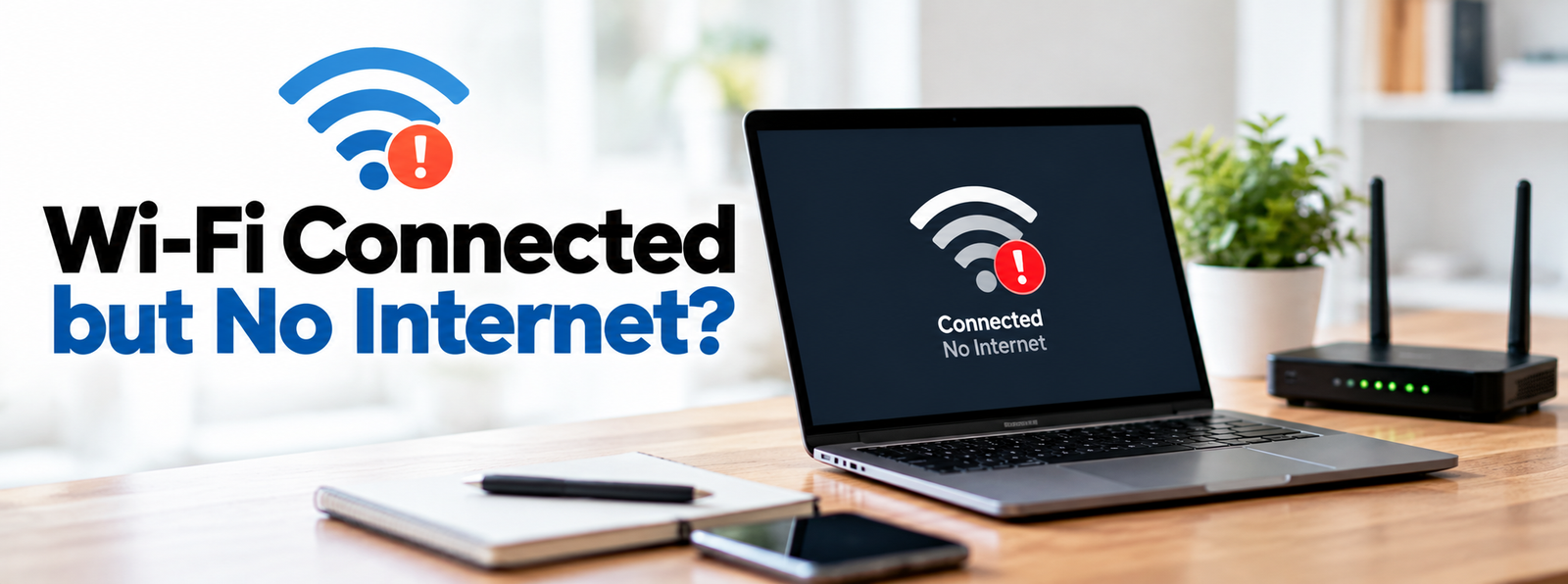
Your computer shows that it is connected to Wi-Fi, but websites refuse to load. Your browser keeps waiting, online applications stop responding, and you cannot access the services you need. If this sounds familiar, the problem may be related to your internet connection or your computer's network settings.
A Wi-Fi connection only establishes communication between your computer and the wireless network. It does not necessarily mean that the network has a working connection to the internet. Several factors can cause this issue, including router problems, service interruptions, incorrect network configurations, DNS errors, or outdated network drivers. The good news is that you can investigate many of these problems with a few straightforward checks.
What Does “Connected to Wi-Fi but No Internet” Mean?
When your computer connects to a wireless network, it communicates with your router. The router then provides access to the internet through your internet service provider.
If the connection between the router and the internet is interrupted, your computer may remain connected to Wi-Fi even though websites and online services are unavailable. A similar problem can occur when your computer has difficulty obtaining a valid network address or resolving website names.
Understanding where the connection fails can help you choose the right troubleshooting steps.
Find Out Whether the Problem Affects Other Devices
Start by checking whether other devices can access the internet through the same Wi-Fi network. Connect a phone, tablet, or another computer to the network and try opening a website.
- If every device has the same problem, investigate the router, modem, or internet service.
- If other devices work normally, focus on your PC's network configuration and software.
This first check helps you narrow down the possible causes without making unnecessary changes to your computer.
Restart Your Network Equipment
A temporary problem with your router or modem can interrupt internet access. Restarting the equipment may restore the connection.
- Save any work that depends on an active internet connection.
- Disconnect the router and modem from their power sources.
- Wait approximately 30 seconds.
- Reconnect the modem first if it is a separate device.
- Allow the modem's connection indicators to stabilize.
- Reconnect the router and wait for it to finish starting.
- Connect your PC to Wi-Fi and test a website.
If your modem and router are combined into one device, follow the manufacturer's restart instructions.
Important Caution: Avoid using the factory reset button unless you intend to erase the device's saved configuration. A factory reset can remove your Wi-Fi name, password, and other settings.
Reconnect Your PC to the Wireless Network
Your computer may occasionally experience a temporary connection problem even when the router is working properly.
- Open your computer's network settings.
- Disconnect from the current wireless network.
- Wait a few seconds.
- Select the network again.
- Enter the password if requested.
- Open a website to test the connection.
If reconnecting does not help, you can try removing the saved network and joining it again. Make sure you know the correct password before doing so.
Check Whether Your Internet Service Is Available
An internet service interruption can prevent websites from loading even when your local Wi-Fi connection is working. Your provider may be experiencing maintenance, an outage, or a problem with the connection serving your location.
To investigate, check your provider's official service-status page or contact its customer service team. If several devices have lost internet access at the same time, this is a particularly useful step.
If your provider confirms an outage, you may need to wait for the service to return. Changing your PC's settings will not resolve a provider-side interruption.
Check Your PC's Network Settings
Incorrect network settings can prevent your computer from communicating properly with the router or accessing online services.
- Make sure Wi-Fi is enabled.
- Confirm that airplane mode is turned off.
- Check whether the computer has joined the correct network.
- Disconnect from any unintended network connections.
- Restart the computer and test the connection again.
If the problem continues, use your operating system's built-in network diagnostic tools. These may identify a connection problem and suggest appropriate corrective steps. The exact settings and diagnostic options vary by operating system and version.
Check the IP Address Configuration
An IP address allows devices to communicate across a network. If your computer does not receive a suitable address from the router, internet access may fail.
On many Windows-based computers, you can review the current network details using the ipconfig command.
Open Command Prompt and enter:
Look for the information associated with your active wireless adapter, including the IPv4 address and default gateway.
An IPv4 address beginning with 169.254 may indicate that your computer could not obtain an address from the network's DHCP service. This is a clue rather than a definitive diagnosis.
If you are unfamiliar with network configuration, avoid changing advanced address settings without guidance. Incorrect manual settings can create additional connection problems.
Investigate Possible DNS Problems
DNS, or the Domain Name System, helps your computer locate websites by translating domain names into network addresses. If DNS resolution fails, a website may not open even when the computer is connected to Wi-Fi.
Before changing DNS settings, restart your browser and router and test several websites. If the issue continues, review the DNS configuration for your network connection.
A trusted public DNS service may be an option in some situations, but changing DNS settings will not resolve every connectivity problem. If your network is managed by an employer or school, consult the network administrator before making changes.
Review VPN and Proxy Connections
A VPN or proxy changes how your computer routes network traffic. If the service becomes unavailable or its configuration is incorrect, internet access may be interrupted.
If you use a VPN, check whether it is connected and functioning normally. You may temporarily disconnect it to test the connection if doing so is permitted by your network or organization. Also review proxy settings if your computer uses a proxy server.
Some workplace and school networks require these services, so follow the relevant organization's instructions before changing them. If internet access returns when a VPN is disconnected, investigate the VPN configuration rather than assuming that Wi-Fi itself is faulty.
Check Security Software and Firewall Settings
Security applications help protect your computer, but incorrect rules or configuration changes can sometimes interfere with network traffic. If the problem began after installing new software or changing security settings, review those recent changes.
Make sure your security software is up to date and follow its official troubleshooting guidance. Do not permanently disable your firewall or antivirus protection to test an internet connection.
If you suspect that a security application is blocking access, consult its documentation or the software provider for a safe way to investigate the issue.
Review Your Network Adapter and Driver
Your computer's wireless adapter provides the hardware connection to a Wi-Fi network. Its driver allows the operating system to communicate with that hardware. A faulty, outdated, or incompatible driver can cause connection failures or unstable internet access.
To investigate, check your computer's device-management settings for warnings related to the wireless adapter. Look for suitable driver updates through your operating system's update tools or the computer manufacturer's official website.
Choose a driver designed for your specific device. If the connection stopped working after a recent driver update, check whether the manufacturer provides guidance for restoring a compatible version.
Test the Connection on Another Network
If the cause is still unclear, try connecting your PC to another trusted network, such as a mobile hotspot. This comparison can help identify whether the problem is associated with your original network or the computer itself.
- If the PC works on another network, investigate your original router, internet service, or network configuration.
- If the PC cannot access the internet on multiple networks, investigate its network settings, adapter, drivers, or security software.
Keep in mind that mobile hotspots may use cellular data and incur charges depending on your plan.
Some connection problems cannot be resolved through computer troubleshooting alone. Consider contacting your provider if multiple devices cannot access the internet, the router repeatedly indicates a service problem, or restarting your equipment does not restore the connection.
Explain which devices are affected, when the problem began, and which basic checks you have completed. This information can help the provider investigate the issue. If only your PC is affected, a computer technician or network specialist may be better placed to investigate device-specific problems.
Frequently Asked Questions
Why does my PC connect to Wi-Fi but not the internet?
Your computer may be connected to the router while the router has no working internet connection. Other possible causes include incorrect IP settings, DNS problems, VPN configuration, or a wireless adapter issue.
Why does Wi-Fi work on my phone but not on my PC?
If your phone accesses the internet through the same Wi-Fi network, the service is likely available. The problem may be related to your PC's network settings, drivers, security software, or saved connection configuration.
Can restarting the router restore internet access?
Yes. Restarting the router can resolve some temporary connection problems. It will not, however, fix every issue, particularly a service outage or a faulty network adapter.
Should I change my DNS settings to fix the connection?
Not necessarily. First determine whether the issue affects other devices and whether the router has internet access. Consider changing DNS settings only when there is a reason to suspect a DNS-related problem.
Does being connected to Wi-Fi mean the internet is working?
No. Wi-Fi provides a wireless connection to your local network. Internet access also depends on the router's connection to the provider and the correct operation of your network configuration.
Final Thoughts
When your PC connects to Wi-Fi but cannot access the internet, start by checking whether other devices have the same problem. This simple test can help you decide whether to investigate the router and internet service or focus on your computer.
Reconnect to the network, restart your equipment, and review the basic network settings before attempting more advanced changes. If the issue continues, investigate DNS settings, VPN connections, security software, and network drivers one step at a time. Making changes gradually helps you identify the likely cause while reducing the risk of creating additional problems.
PCDoctorOnline, owned and operated by AllRoundFix LLC, publishes informational articles and step-by-step guides about common computer problems, connectivity issues, and practical troubleshooting methods.